
PunchFinal User Guide
Closeout software for residential remodelers. Build a punchlist, share it with your client, get signed off, get paid. No more text threads, scattered photos, or "did you finish that?" calls.
Quick start (60 seconds)
- Sign up at punchfinal.com: 14 days free, no card required.
- Click + New Project and fill in the basics (project name and client name).
- Click + Add Item to start building the punchlist. Add photos by clicking the upload button on each item.
- When the list is ready, click Copy Link to grab the client link, or Email Link to send it straight to the client's email. Your client reviews it on their phone or laptop.
- The client signs off in the portal. You click Generate Invoice or Email Invoice and get paid.
That's the whole loop.
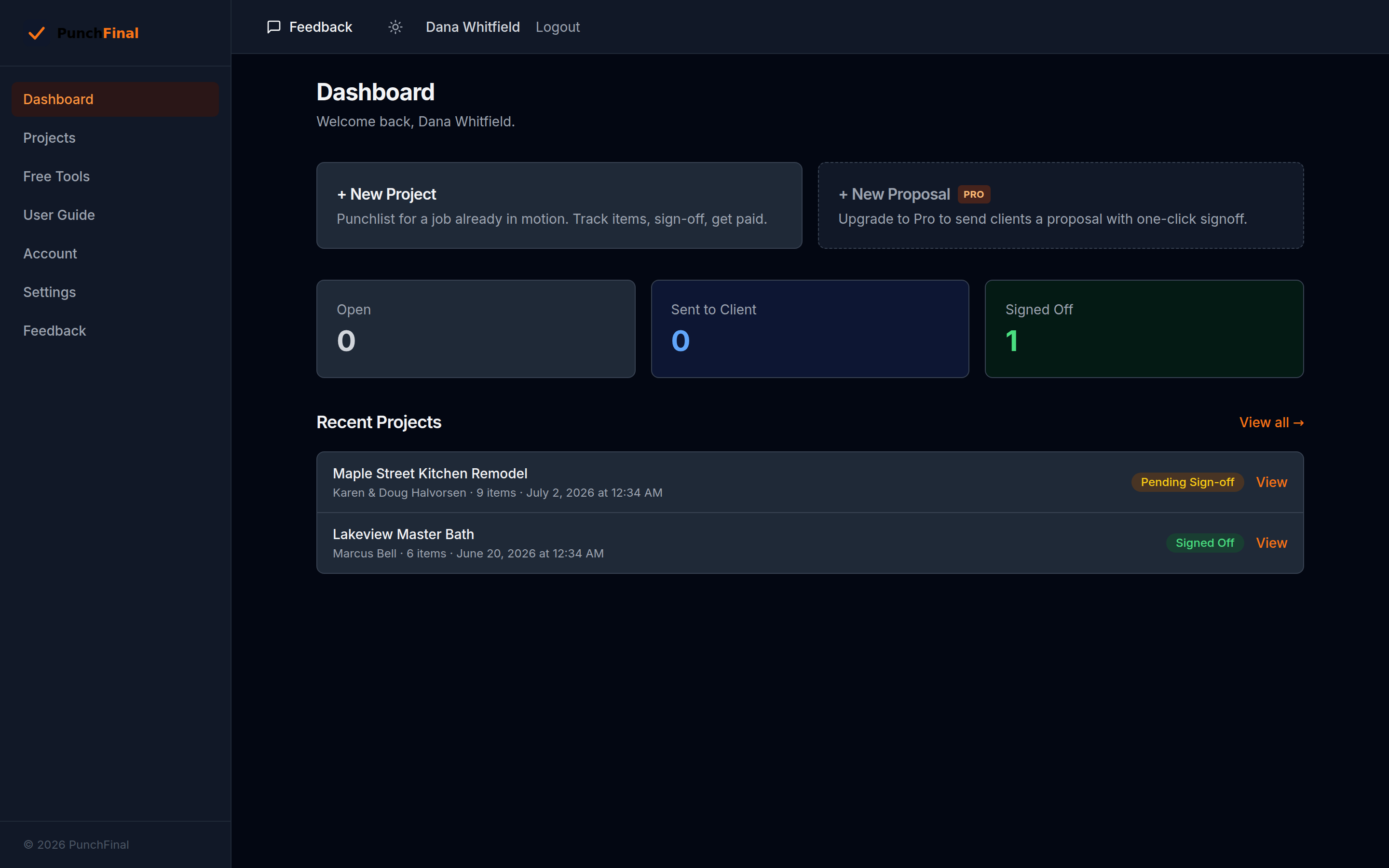
Not sure what a button does? Turn on help mode
Click the small ? button in the top bar (next to Feedback). Little blue ? markers appear beside the important buttons across the app — hover or tap one and it tells you, in plain words, what that button does and when to use it. Click the top-bar ? again to turn the markers off. The setting is remembered on your device.
There's also a Help page in the sidebar with task-by-task answers ("How do I send the list to my client?"), and this guide under User Guide.
Account
Signing up
- Go to punchfinal.com and click Start free trial.
- Email + password. That's it.
- 14-day free trial. After that, pick a plan: Solo $29/month, Pro $49/month, or Team $99/month. Cancel anytime. Pro adds proposals with client sign-off, a parts/labor pricing breakdown on items and invoices, and your email signature on client emails. Team adds white-label branding on your PDFs: your logo, brand name, accent color, invoice footer, and payment terms replace the PunchFinal branding.
Logging in
- punchfinal.com/sign-in.
- Sessions last 30 days, so you stay logged in on the device you use most.
- Forgot your password? Click Forgot password? on the sign-in page and you'll get a reset link by email.
Trial banner
- A small banner at the top of every page tells you how many days are left in your trial. Click Upgrade when you're ready to keep using it.
Creating a project
Click + New Project from the dashboard or the Projects page.
Required
- Project Name: what you call this job (e.g. "Smith kitchen remodel").
- Client Name: primary point of contact.
Optional but recommended
- Property Address: shows up on the invoice and in the client's portal.
- Co-Client Name: for couples. Both names appear on emails and the invoice.
- Client Email: required if you want to email the link or the invoice from inside PunchFinal. You can add it later.
- Payment Amount: total job price, used for the payment link and lump-sum invoicing. Leave blank if you bill per item.
- Notes: internal notes about the job. The client never sees these.
You can edit any of this later by clicking Edit Project at the top of the project page. Edit Project also exposes two settings that aren't on the create form:
- Use line-item pricing: flip this on if your client wants an itemized invoice. Off = single lump-sum payment.
- Invoice Due Date: shows on the PDF. Defaults to "On receipt" if left blank.
Building the punchlist
On any project page, click + Add Item.
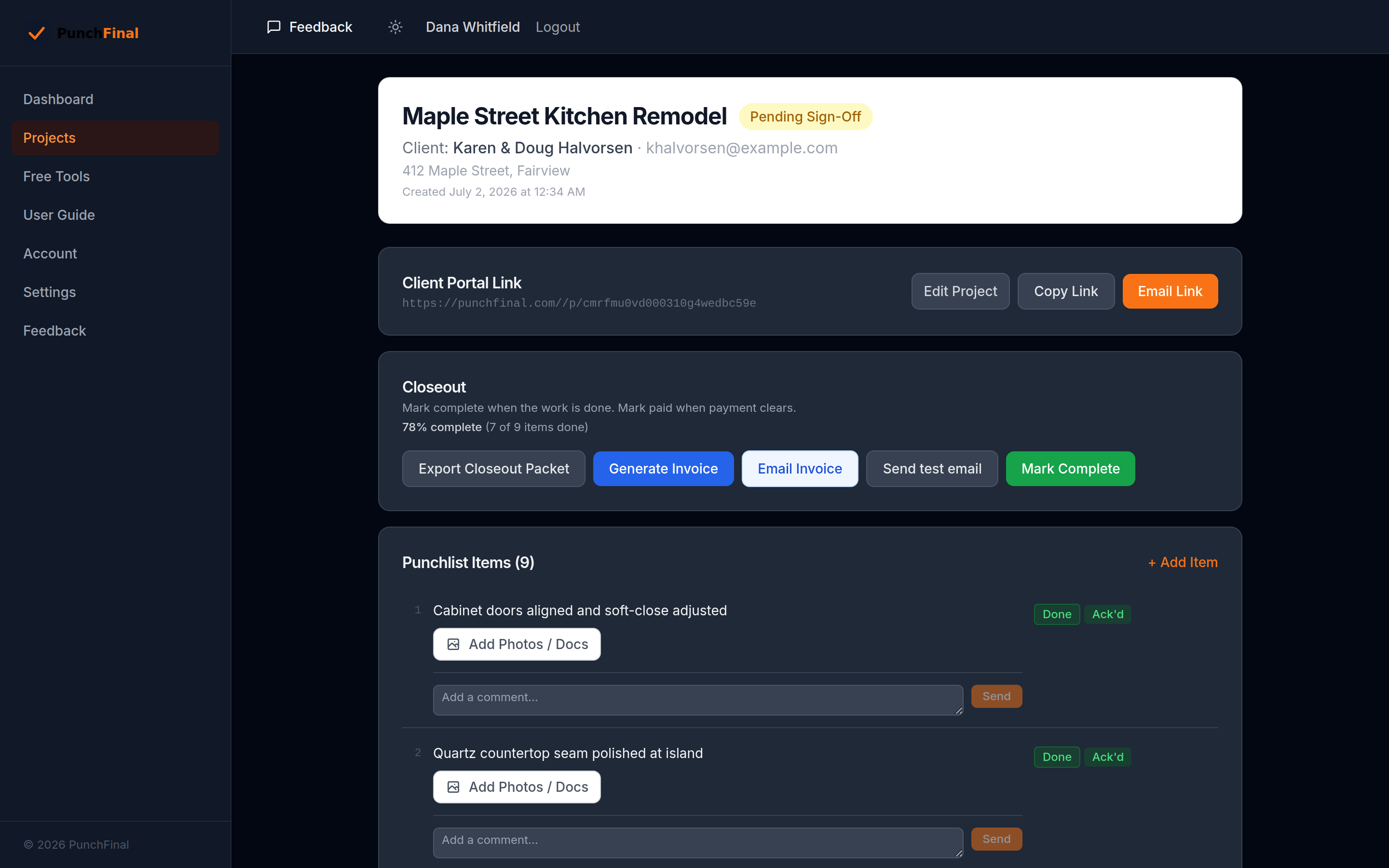
For each item:
- Description: what needs to be done. Required.
- Deliverable: finer-grained scope detail. Optional. Use this when "Description" is the room and "Deliverable" is the specific fix (e.g. Description: "Master bath tile". Deliverable: "Replace cracked tile near drain, regrout").
- Amount + Billable (when line-item pricing is on): set the price and uncheck Billable for items you're including but not charging extra for. On Pro and Team, the single Amount field is replaced by separate Labor $ and Parts $ fields that total automatically, so your invoice can show a parts/labor breakdown.
- Photos / Docs: click the upload button to attach images, PDFs, or Word docs. Up to 10 images (8 MB each) and 5 documents (16 MB each) per item. Take a "before" photo of every item; it shortens disputes later.
Shortcuts
- Press Enter to save when typing in the Description field.
- Press Escape to cancel.
Editing an item
Hover over the item, click Edit. Change any field, click Save.
Deleting an item
Hover, click Delete, confirm. Items can only be deleted while the project is in early statuses (Open, Sent to Client, Pending Sign-Off). Once a project is Signed Off, items are locked.
Two status tracks per item
Each item has two independent badges:
- Work Status (Open or Done): your view. Click to toggle as you finish work. The client doesn't change this.
- Item Status (Open / Ack'd / Disputed): your client's view. They mark it from the portal. Doesn't show until the client touches it.
This separation matters: you can mark something Done before the client has even looked at it, and the client can dispute something even after you've marked it Done. Both views stay independent until you wrap the project. Work Status stays togglable even after sign-off, so you can finish wrapping things up and produce an accurate invoice.
Comments on an item
Every item has a comment thread at the bottom — you write from the project page, your client writes from their portal. Use it for the back-and-forth that would otherwise happen over text ("which shade of white?"), so the conversation stays attached to the item it's about.
Sharing with the client
Once the punchlist is in shape, find the Client Portal Link card on the project page. You have two ways to get the link to your client:
- Copy Link: copies a unique client link to your clipboard so you can paste it into a text or your own email.
- Email Link: sends the link straight to the client email on file, with a short note. Greyed out until you've saved a client email.
Either way, the first share flips the project status from Open to Sent to Client.
The client opens the link on their phone or laptop. No login, no app to install. The link is private and only you can hand it out. It keeps working for the life of the project — after sign-off it becomes a read-only record.
Need to resend? Just click Copy Link or Email Link again — same link, safe to repeat. Once the client interacts with an item, the project status moves to Pending Sign-Off on its own.
What the client sees
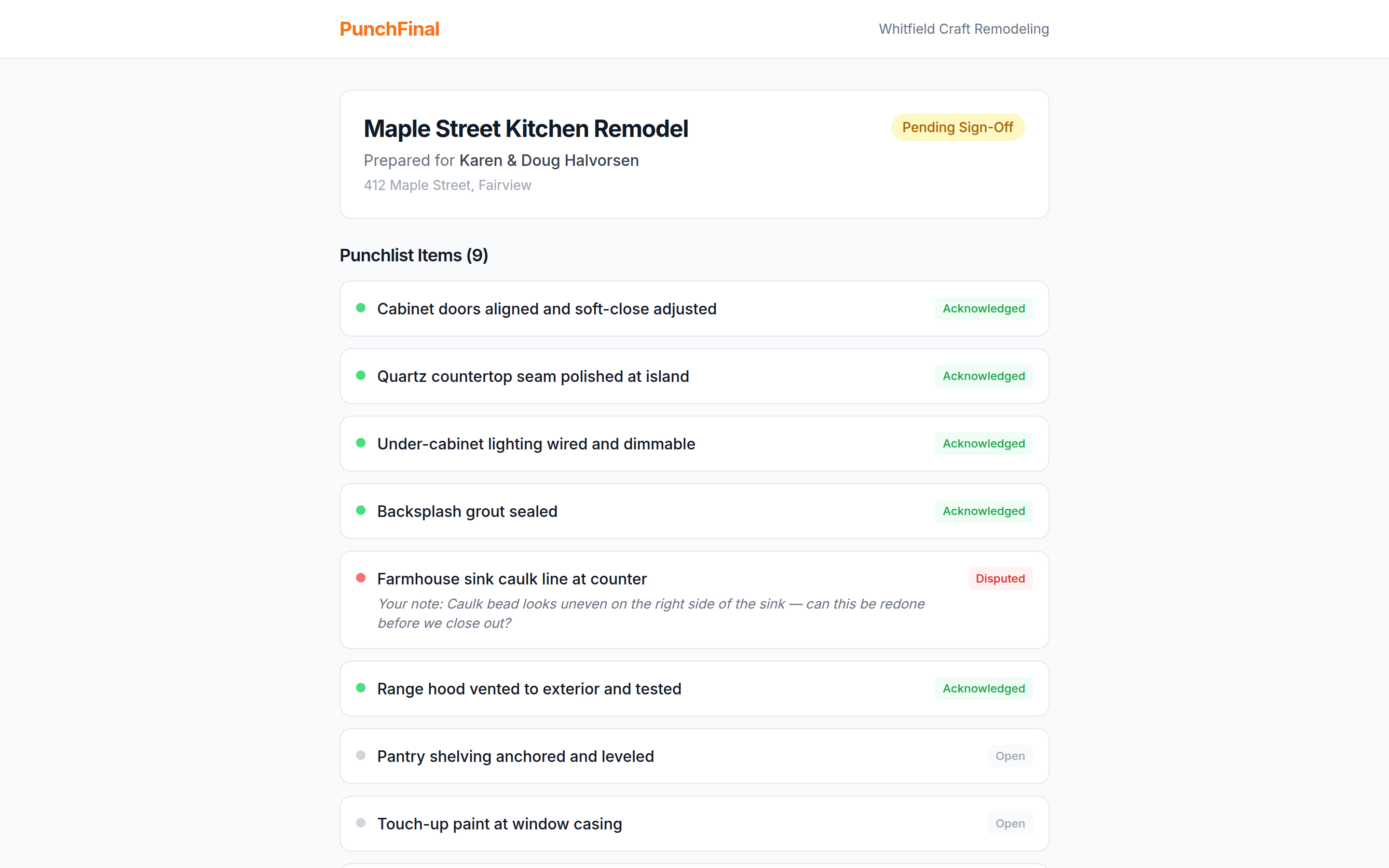
The client portal shows:
- Your project name and address.
- Each punchlist item with its description, your deliverable note, and any photos or docs you uploaded.
For each item the client can:
- Acknowledge: looks good.
- Dispute: there's a problem. They add a note explaining what's wrong.
- Add their own photos or docs: useful for showing you what they're disputing.
- Comment: write in the item's comment thread; you see it on the project page.
When they're done reviewing, they:
- Type their full name.
- Sign with finger (mobile) or mouse (desktop).
- Click Submit Sign-Off.
You get an email with a link to download the signed PDF, and the client gets a confirmation email with their own download link.
The client can change their mind on individual items right up until they sign off. After sign-off, items are locked.
Closing out and getting paid
Generating the invoice
Click Generate Invoice on the project page. A PDF opens in a new tab (on mobile, tap the Open invoice PDF link that appears).
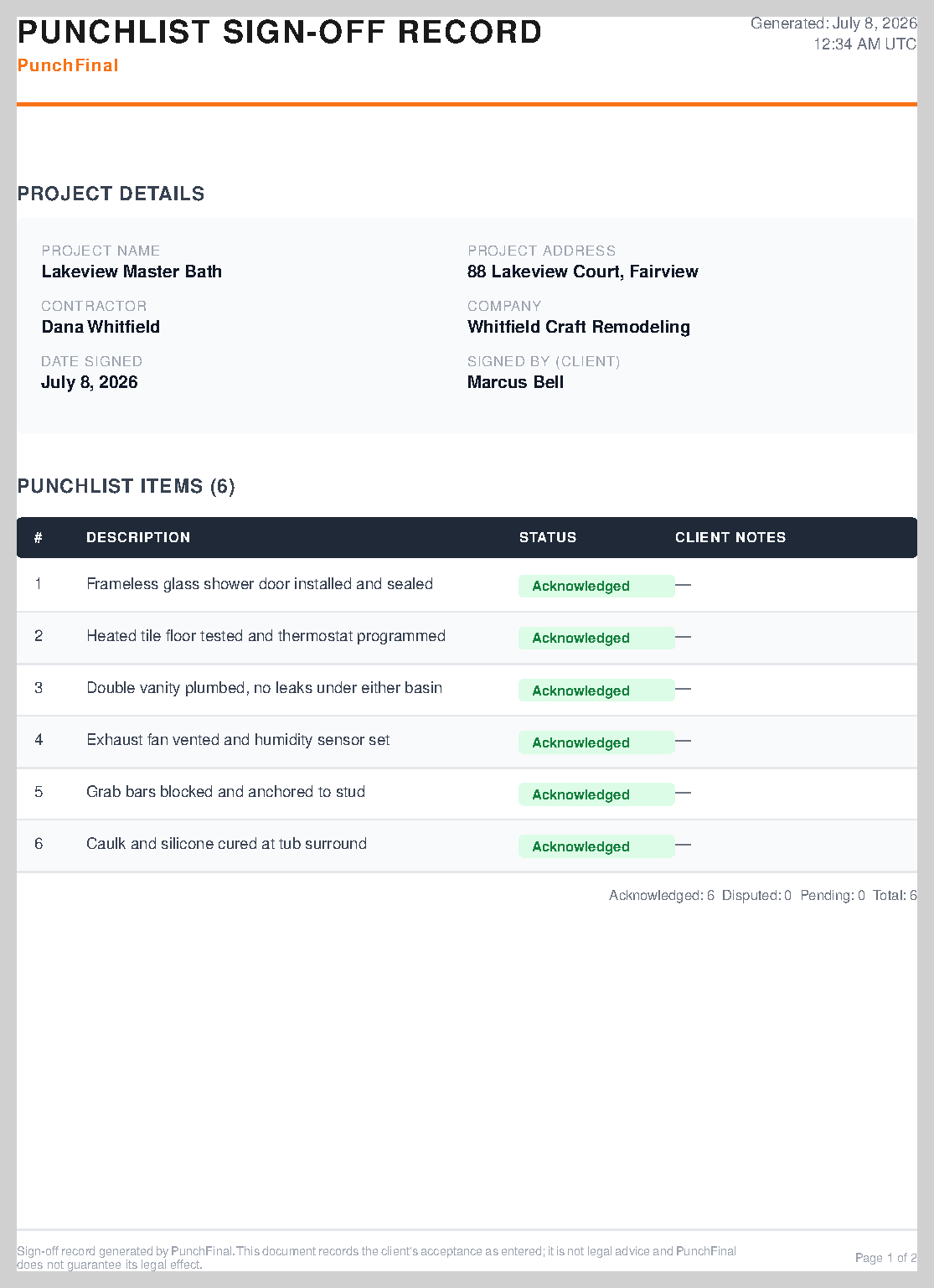
Open items popup. If any punchlist items are still marked Open when you click Generate Invoice (or Email Invoice), you'll get a popup telling you how many items are still marked Open and will appear that way on the invoice. Click Mark all Done to mark them all Done first, or Generate as-is to leave them Open on the PDF. This stops you from accidentally sending the client an invoice that says "Open" next to work you've actually finished.
The invoice shows:
- Your name and company.
- Client name(s), email, and property address.
- Each item with its work status (Open or Done).
- If line-item pricing is on: per-item amounts and a total (with a parts/labor breakdown on Pro and Team).
- If line-item pricing is off: the lump-sum payment amount you entered.
- An invoice number (auto-generated, format INV-0001 — sequential and zero-padded). You can change the prefix and the next number in Account settings on any plan; a project keeps the number it was assigned the first time you generated its invoice.
Emailing the invoice
Click Email Invoice. The PDF goes to the client email on file as an attachment. You'll see "Invoice INV-0001 sent to [email]" when it works.
Greyed out? You haven't saved a client email yet. Click Edit Project and add one.
Testing email delivery
Not sure emails are getting out? Click Send test email in the Closeout card — it sends a test message to your own address so you can confirm delivery before emailing a client.
Marking the project complete
Two endpoint actions:
- Mark Complete: moves the project to Signed Off and locks all items. Use this when the client signed off in person or you don't need a portal sign-off. Clicked it too soon? Reopen puts the project back to Pending Sign-Off and unlocks the items.
- Mark Paid: final state. Project shows as Paid in the dashboard. Undo Paid reverses it if you clicked by mistake.
You can run them from the project page, or let the client trigger Signed Off via the portal.
Taking payment online (Stripe)
If the project has a Payment Amount set, a Generate payment link button appears in the Payment card once the project is Signed Off. It creates a Stripe payment page; the same Pay Now button also appears in your client's portal. When the client pays by card, the project is marked Paid automatically — no bookkeeping on your end. Paid by check or cash instead? Just click Mark Paid.
Exporting a closeout packet
Export Closeout Packet (in the Closeout card) downloads a complete PDF record of the job: project summary, completion stats, the full punch list with both status tracks, photo evidence grouped by item, and the client's sign-off (or a blank signature line if they signed in person). Available at any time, in any status — use it for your files, warranty folders, or a lender. Your client gets a matching Download Closeout Packet button in their portal once the project is Signed Off or Paid.
Proposals (Pro)
On Pro and Team, + New Proposal (on the dashboard) starts a project as a priced quote instead of a punchlist:
- Build the proposal as line items with prices (parts/labor split supported).
- Click Send Proposal to Client — the client gets a portal link where they review the line items and Accept or Decline (with an optional note). Items are locked while the proposal is out.
- If they accept, click Convert to punchlist — the line items carry over and you work it like a normal project from there: track work, get sign-off, invoice, get paid.
The proposal banner at the top of the project page always shows where things stand (Draft, Sent, Accepted with timestamp, or Declined) and any note the client left.
Project statuses
Every project sits in one of these:
| Status | What it means |
|---|---|
| Open | You're still building the punchlist. The client hasn't been notified. |
| Sent to Client | Link is out. Client may or may not have opened it yet. |
| Pending Sign-Off | Client has interacted with at least one item but hasn't signed yet. |
| Signed Off | Client signed (or you marked complete). Items are locked. Time to invoice. |
| Paid | Final state. Project closed. |
Proposals have their own track: Proposal Draft → Proposal Sent → Accepted (convert to punchlist) or Declined.
The status badge appears at the top of the project page.
Account settings
The Account page (sidebar) holds:
- Profile: your name, company, and phone — these appear on invoices and in the client portal header.
- Plan & billing: your current plan, upgrade buttons, and (once subscribed) access to manage or cancel the subscription.
- Branding: logo URL and email signature. The signature is added to client emails on Pro and Team. The logo prints on invoice and sign-off PDFs on the Team plan.
- White-label (Team): replace the PunchFinal name, accent color, and logo on your invoice and sign-off PDFs with your own brand.
- Invoice numbering (all plans): set the prefix (e.g. SMITH) and the next number so PunchFinal invoices continue your existing numbering. Also home to the invoice footer and payment terms text, which print on Team-plan invoices.
The Settings page (sidebar) covers security:
- Change password.
- Two-factor authentication (optional): add an authenticator-app code at sign-in for extra protection. Off by default; turn it on if you want it.
Free tools
The Free Tools section of the site (also linked in the sidebar) has standalone calculators you can use on any job, no project needed: an estimate generator, a lien waiver generator, a markup calculator, and a before/after photo slider.
Tips from contractors who use it
- Add photos to every item. The 15 seconds it takes to snap and upload saves an hour of "well, this is what I meant" later.
- Use the Co-Client Name field for couples. Spouses get along better when their name is on the email too.
- Turn on line-item pricing for change orders or punchlist add-ons; leave it off for the original fixed bid.
- Mark items Done as you go, even before the client looks. Your dashboard becomes a real-time view of where the job stands.
- If a client disputes an item, fix it and let them know. They can re-acknowledge from the same portal link.
Troubleshooting
I don't know what a button does. Click the ? in the top bar to turn on help mode, then hover the button — a plain-language explanation appears.
The client says they didn't get the email. Check spam. Then click Copy Link to copy the link to your clipboard and text it directly, or Email Link to resend.
My invoice button is greyed out. You need at least one item on the project. Add one, then try again.
My Email Invoice button is greyed out. You haven't saved a client email. Click Edit Project and add one.
The client's portal is "not loading" on their phone. Ask them to refresh. If still stuck, click Copy Link and text it again. Some email clients mangle long URLs.
I marked something Done by mistake. Click the badge again. It toggles back to Open.
A photo won't upload. Max 8 MB per image, 16 MB per PDF/Word doc. If it's a phone photo over 8 MB, ask the client to take a screenshot of the photo (smaller file).
I'm not sure my emails are being delivered. Click Send test email on any project page — it emails your own address so you can confirm delivery works.
Need help?
Email [email protected] with your project name and the issue. Most replies same day. You can also send a note from the Feedback page in the sidebar.